 FSI Doc Manager
Most of us still get important papers on paper: receipts, forms, letters, notes. You can turn them into a clean PDF with your phone in a few seconds. Here is how to do it with FSI Doc Manager, a free Android app that adds no watermark and has no scan limit.
Scan with the camera
- Open the app and tap the round Scan button in the middle of the bottom bar.
- Choose Document. (There are also modes for ID cards, books, and scanning straight to text, Word or Excel.)
- Point your camera at the page. The edges of the paper are found by themselves and the photo is taken.
- Add more pages if you need them, then save. Your PDF is in My Files.
Already have photos? Turn them into a PDF
Photos from WhatsApp or your gallery work just as well – this is what the video above shows.
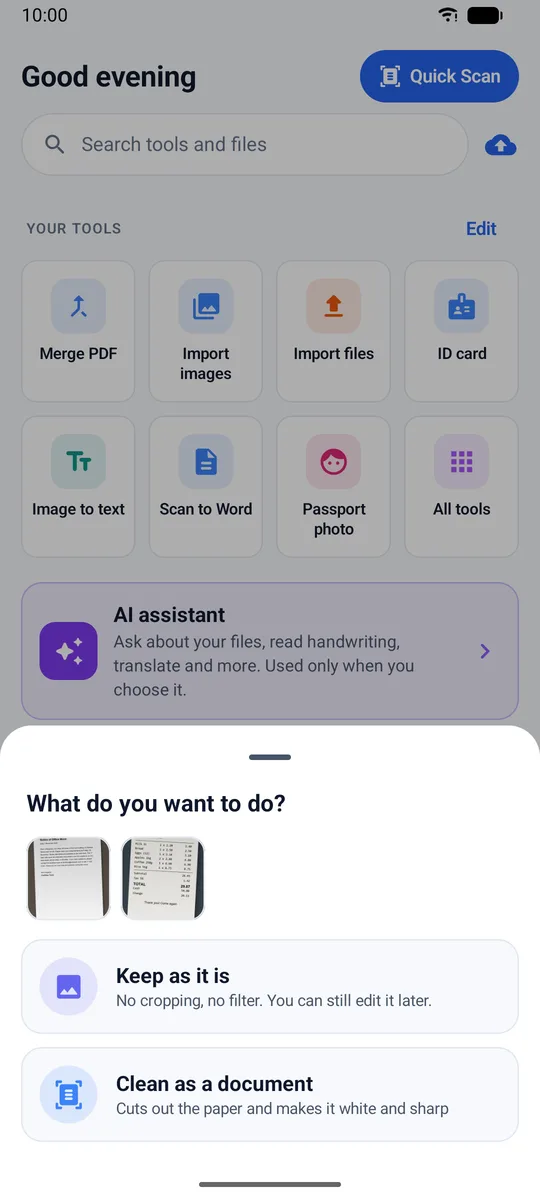
- On the Home screen tap Import images and choose one or more photos.
- Tap Clean as a document: the app finds the paper, straightens it and makes it white and sharp. (Keep as it is leaves the photo unchanged.)
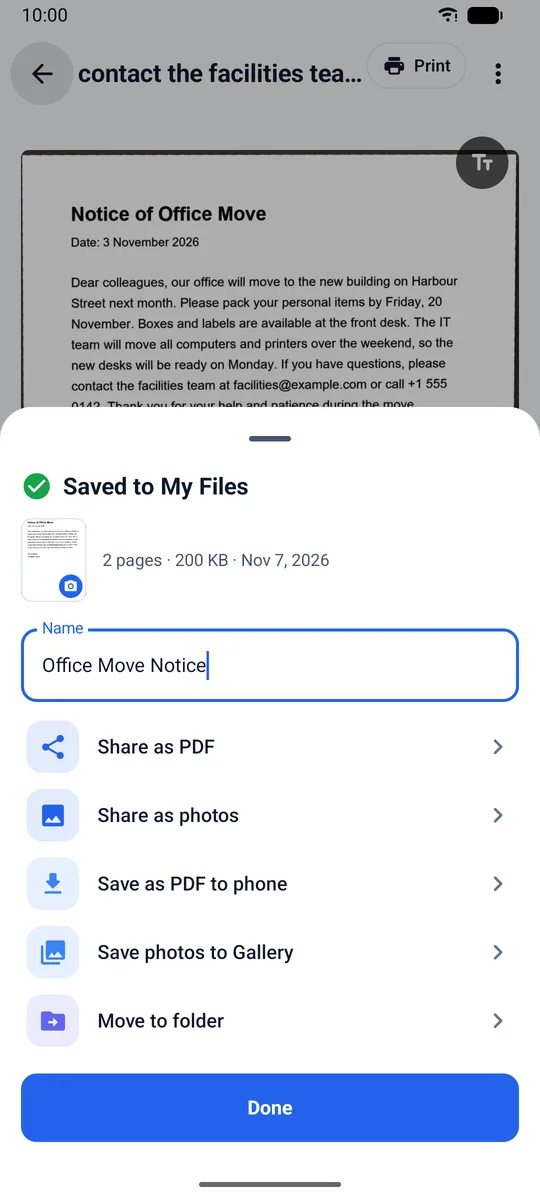
- Give it a name – the app suggests one from the text on the page.
Crop and filters
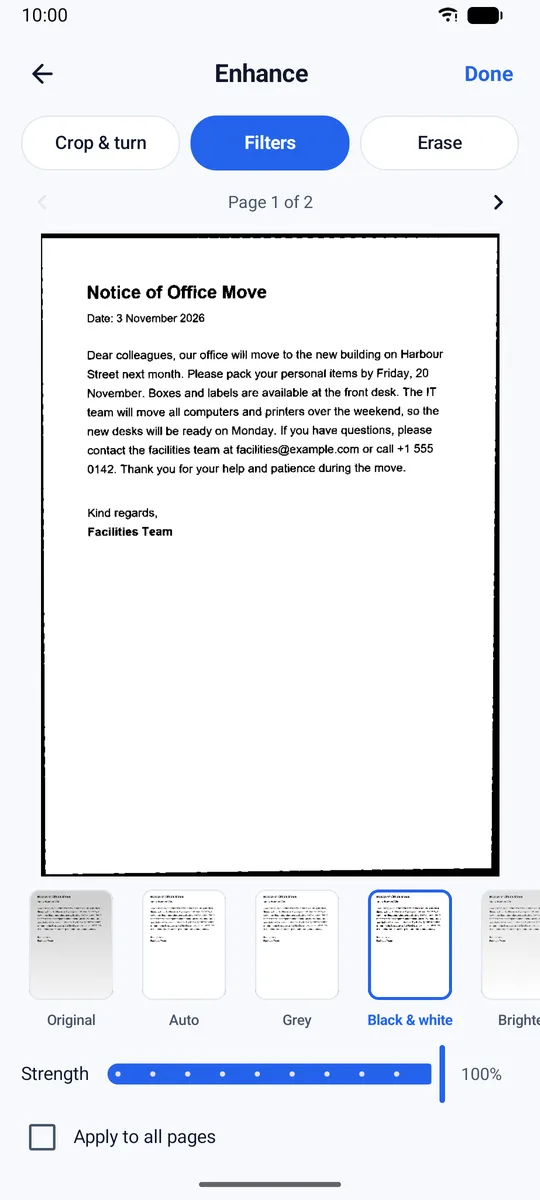
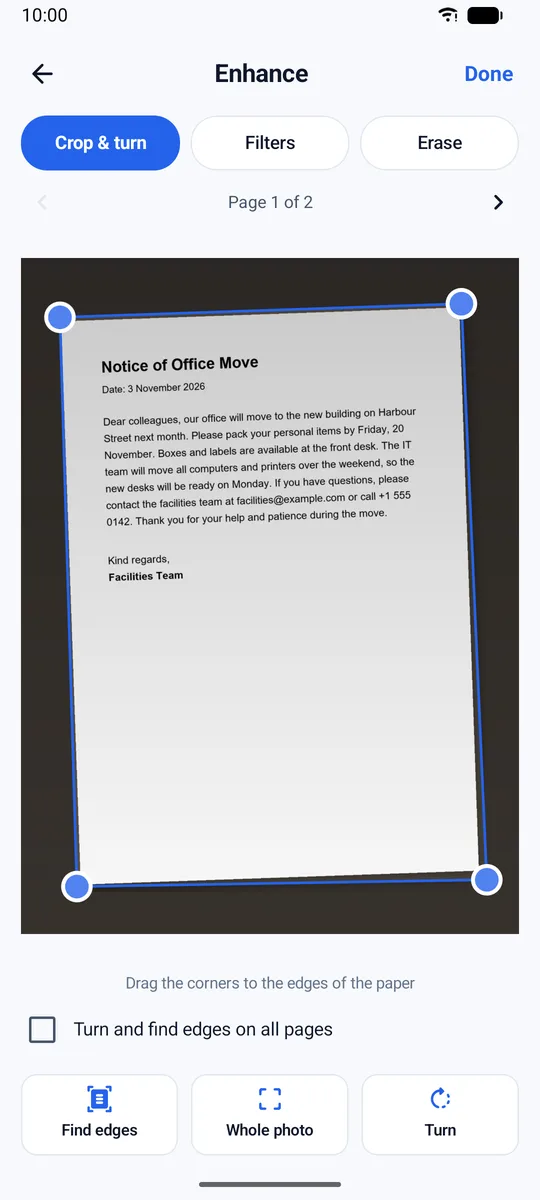
Tap Enhance. Under Crop & turn, Find edges straightens the page; you can also drag the corners yourself, turn the page or keep the whole photo. Under Filters, try Auto, Grey, Black & white or Brighter, set the strength, and tap Apply to all pages.
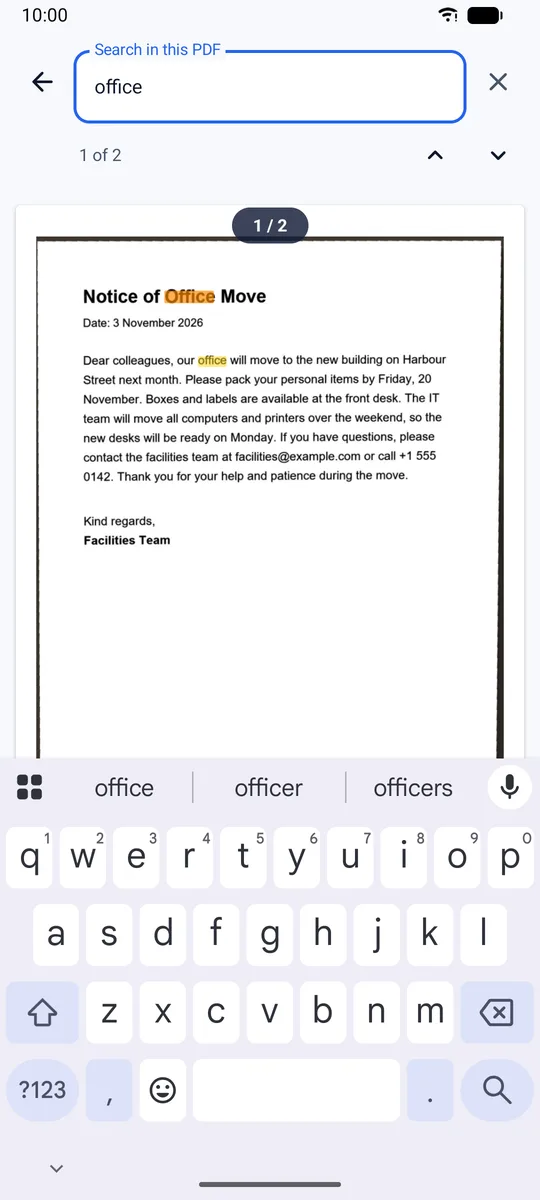
Make a PDF you can search
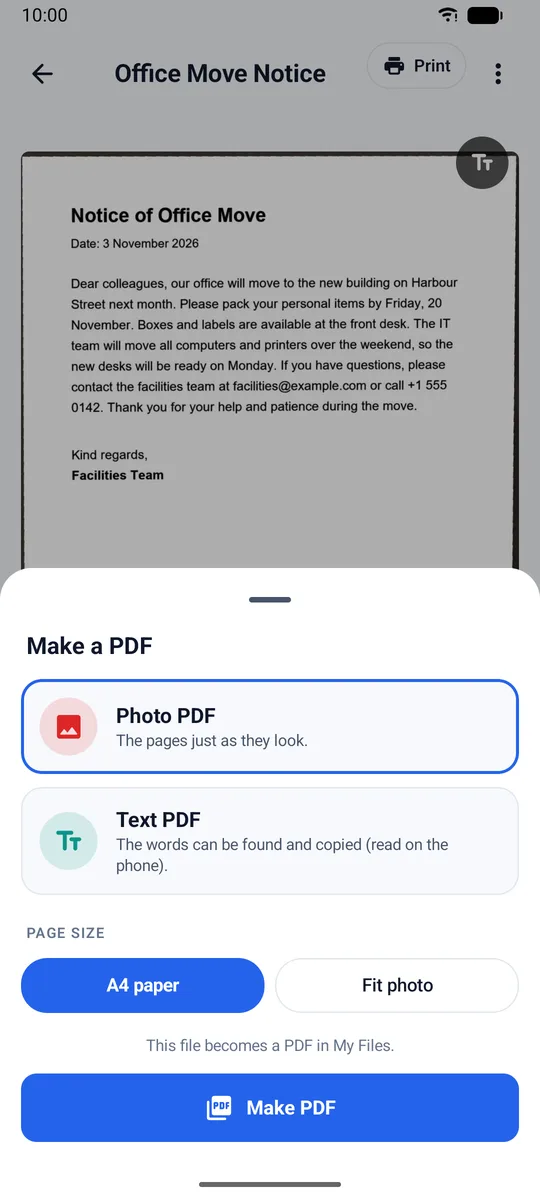
Tap To PDF. Choose Photo PDF (pages just as they look) or Text PDF – the words are read on your phone and can be found and copied later. Pick A4 paper or Fit photo and tap Make PDF.
Tips for a better scan
- Use good light. Daylight near a window works best. Avoid your own shadow over the page.
- Put the paper on a dark table. A clear edge helps the app find the corners.
- Hold the phone straight above the page, not at an angle.
- Old or faded paper? In Enhance, try the Faded text filter: it turns yellow paper white and pale ink dark.
More than a scanner
- Turn it into Word or Excel – see photo to Excel and PDF to Word.
- Sign or change it – see how to edit a PDF.
- Make it smaller for an online form – see compress a PDF to 100 KB.
- ID cards and books: choose ID card in the Scan menu to put the front and back on one page, or Book to photograph an open book once and get two pages.
FSI Doc Manager is free on Google Play.