 FSI Doc Manager
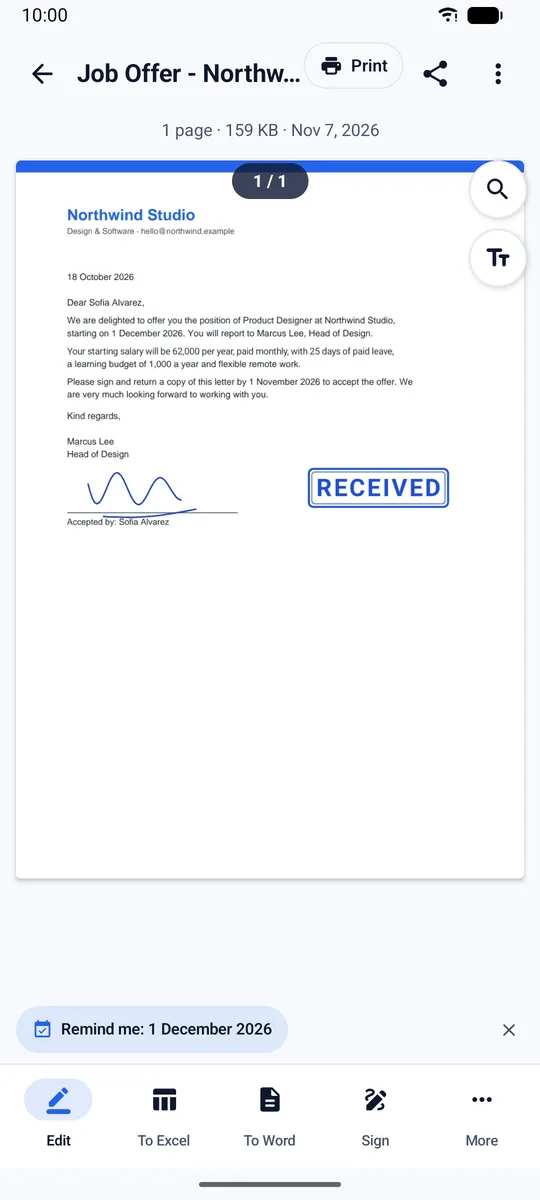
A typo in a contract, a new amount on a letter, a signature that's missing – you don't need a computer to fix a PDF. With FSI Doc Manager you can change the text that's already in a PDF, sign it and stamp it right on your Android phone. Here is the whole process, step by step.
1. Open the PDF in Edit PDF
- Open the app and go to Tools → PDF tools → Edit PDF.
- Pick your PDF from the list, or tap Choose from phone for a PDF from WhatsApp, Downloads or e-mail.
- Choose On the phone. The page is read on your phone – it's free and nothing is sent anywhere. (AI mode reads difficult pages more exactly, but sends the page to Google's Gemini AI.)
2. Change the existing text
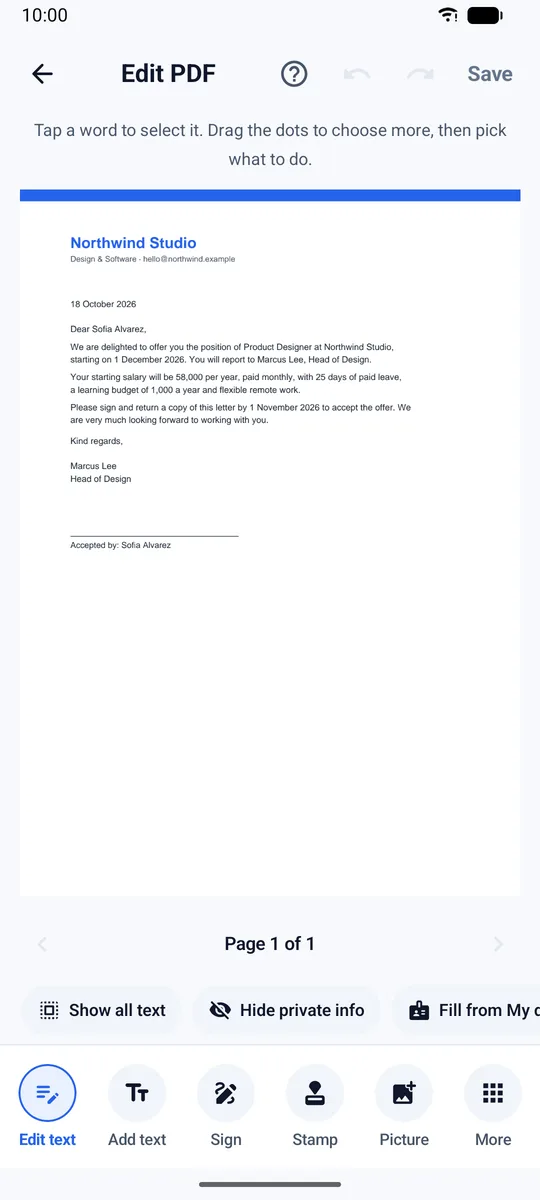
- Tap a word. It is selected, and a menu appears: Copy, Edit, Delete, Style and more.
- Tap Edit and type the new text – here the salary changes from 58,000 to 62,000.
- Tap Confirm. The colour, size, boldness and style are copied from the page, so the new text looks like the old one.
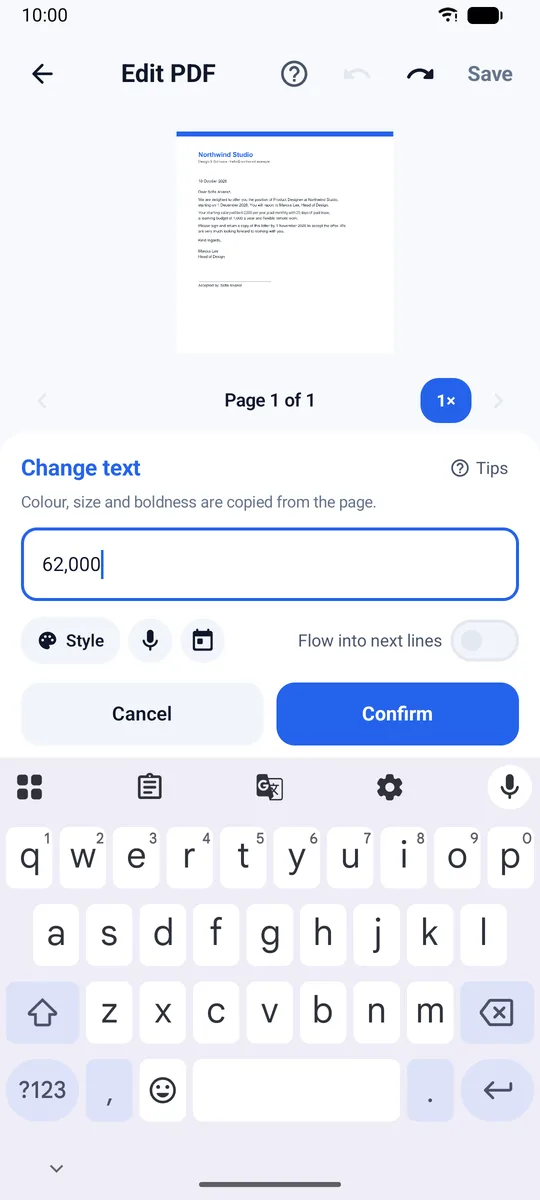
Tip: tap Line in the menu to change a whole line, or turn on Flow into next lines when your new text is longer.
3. Add your signature
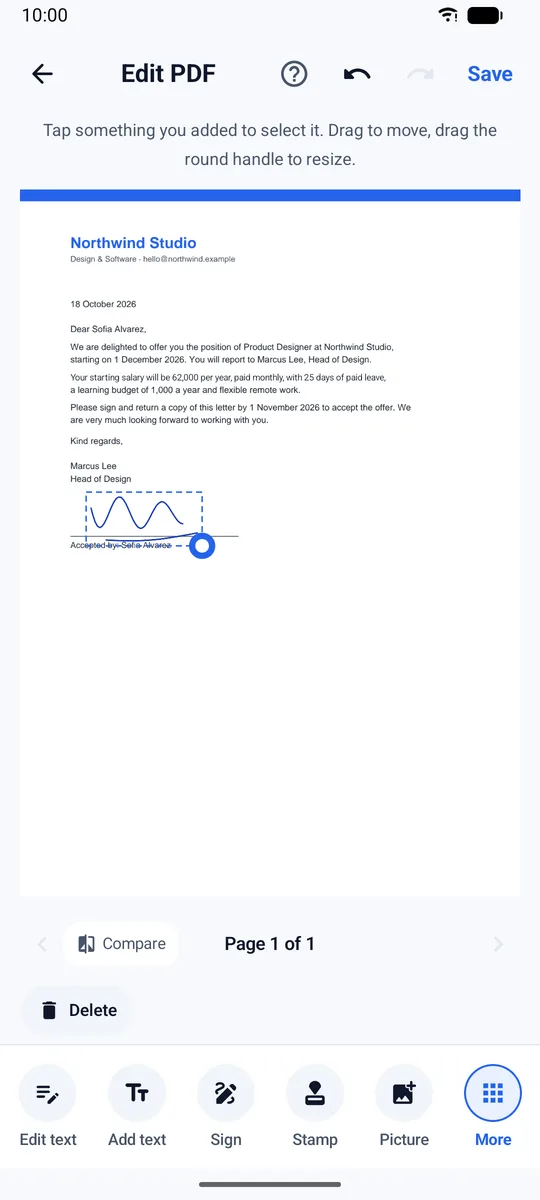
- Tap Sign at the bottom, then Draw a new one (or use your saved signature).
- Sign with your finger, pick Black or Blue, and tap Save. You can also upload a photo of your signature on white paper.
- Drag the signature onto the line. Drag the round handle to make it bigger or smaller.
4. Add a stamp
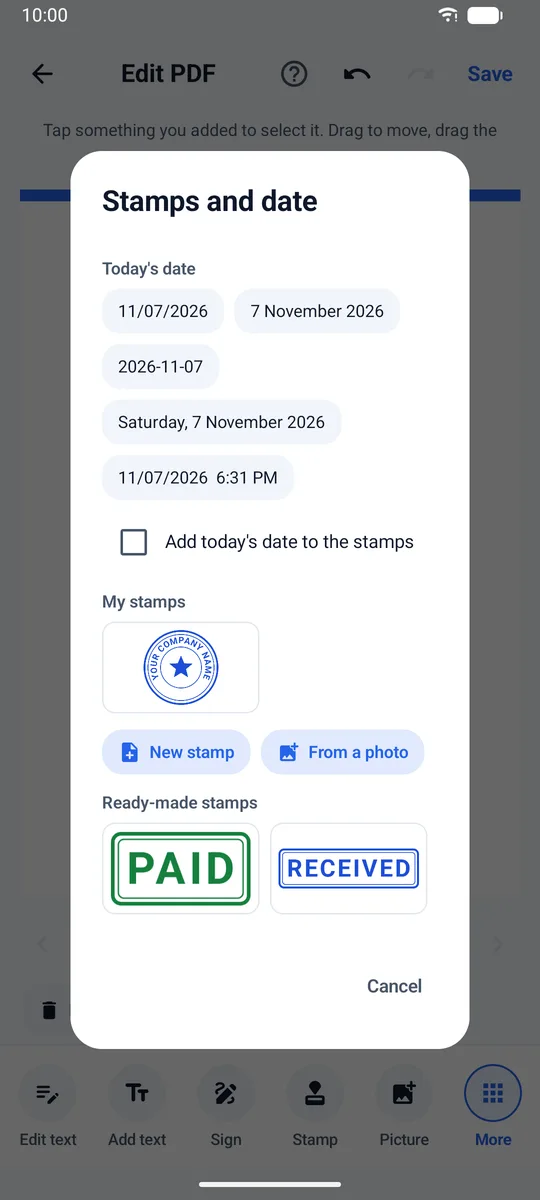
Tap Stamp. Pick a ready-made stamp such as PAID or RECEIVED, today's date in several formats, or your own company seal (make one with New stamp or From a photo). Then drag it where you want it.
5. Check every change, then save
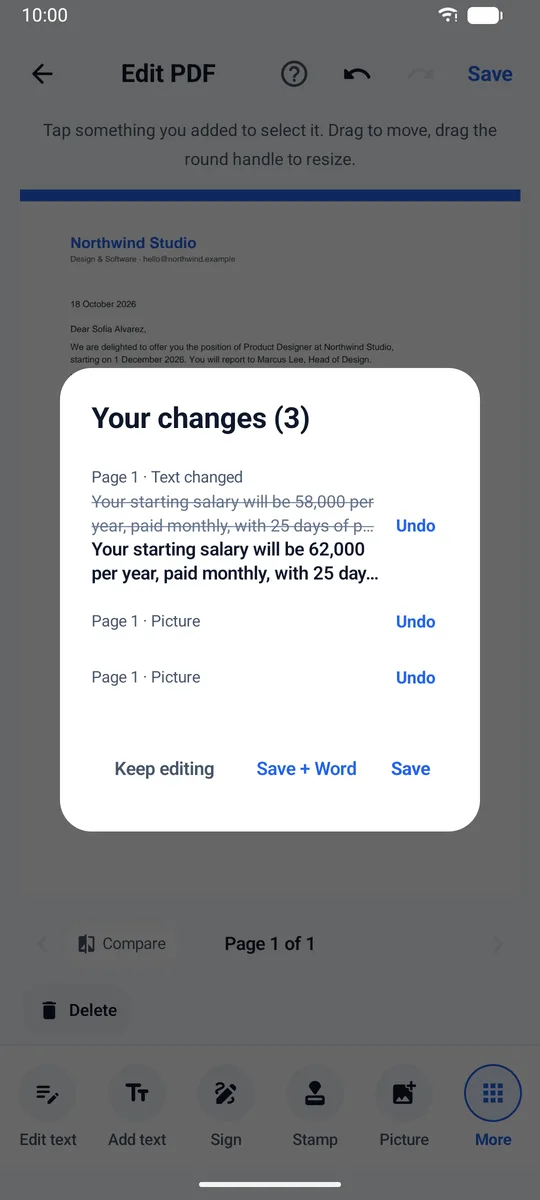
Tap Save. You first see a list of every change – the old text and the new text side by side. Tap Undo next to anything you don't want, then tap Save. The edited PDF is saved as a new copy in My Files, so your original stays as it was.
Good to know
- Free saves: sign in with Google and your first 3 saves are free; after that each save needs one short video, or Premium for unlimited saves without ads.
- Scanned PDFs work too: the app reads the text from the page picture. Clear, straight scans give the best result.
- Secure blackout: covering text with Hide private info really removes it from the file, not just hides it.
- More tools are under More: add text, pictures, shapes, pen, highlighter and notes.
Try it yourself
FSI Doc Manager is free on Google Play.