 FSI Doc Manager
Got a printed price list, a sales report or a mark sheet, and need it in Excel? Or a PDF contract you have to change? With FSI Doc Manager you can turn a photo of a table into an Excel sheet and a PDF into a Word file on your Android phone – and then edit the result right in the app.
Photo of a table → Excel
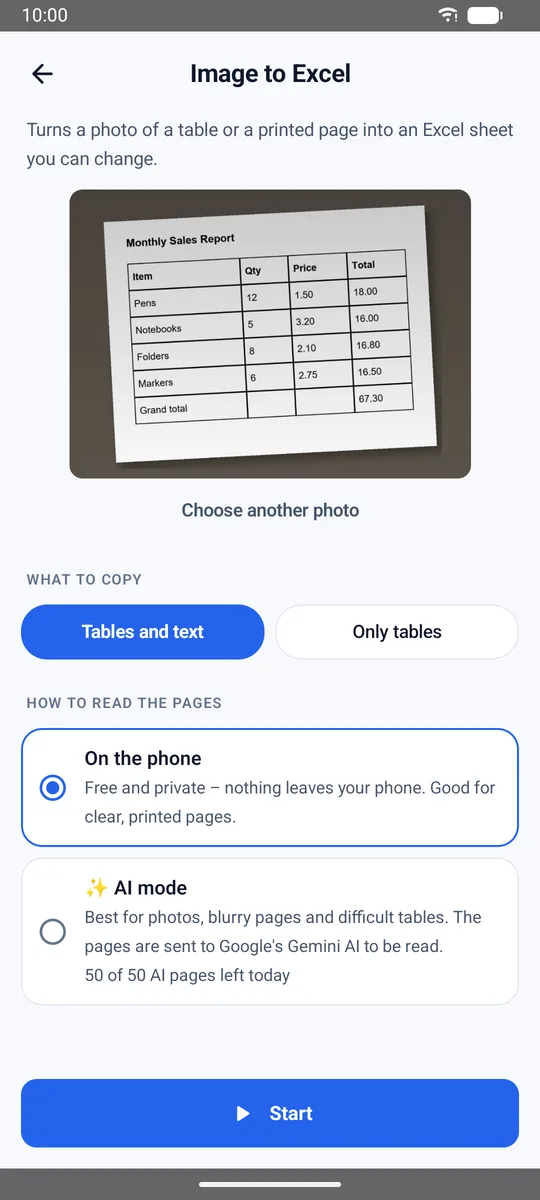
- Go to Tools → Image to Excel and pick a photo of a table. It can be taken at a slight angle – the app straightens it.
- Under What to copy, choose Tables and text (everything on the page) or Only tables.
- Under How to read the pages, choose On the phone – free and private, nothing leaves your phone.
- Tap Start. Rows, columns and lines are rebuilt as a real Excel sheet.
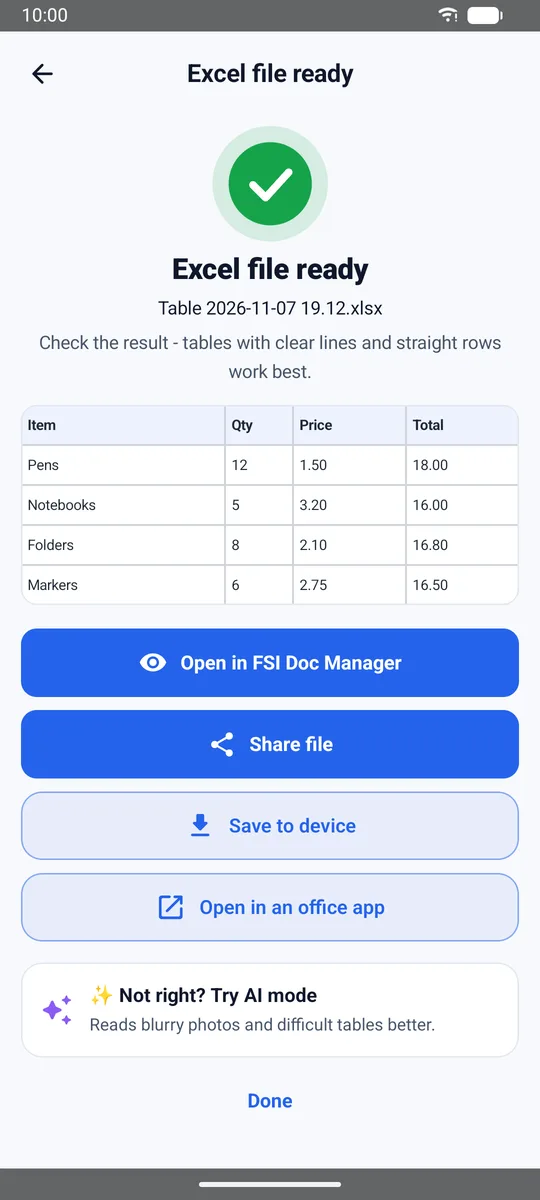
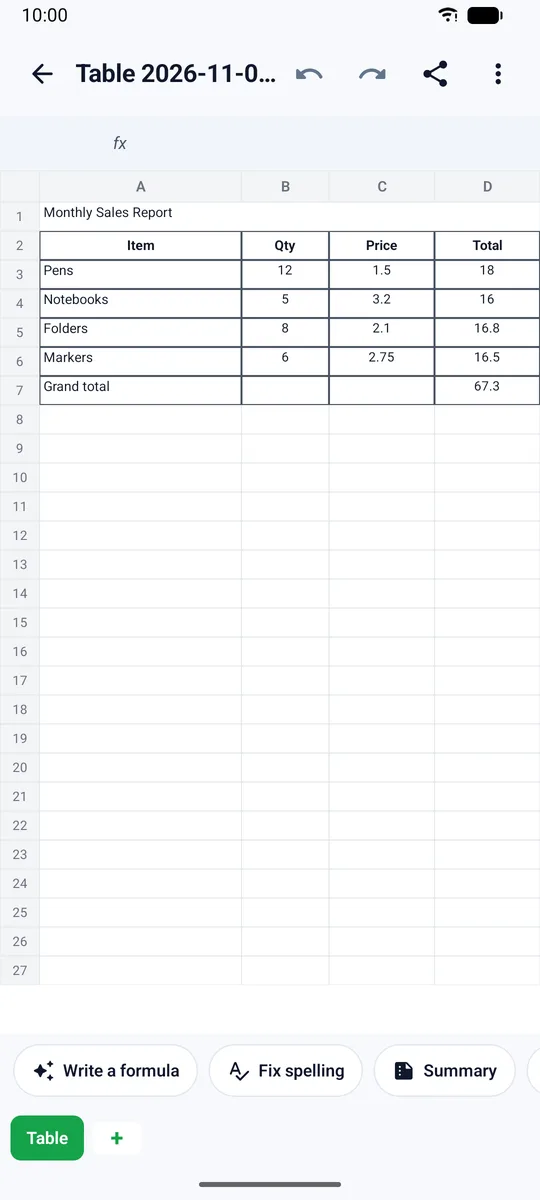
Tap Open in FSI Doc Manager to change cells in the built-in Excel editor, or Share file, Save to device or Open in an office app.
PDF → Word
- Go to Tools → PDF to Word and pick the PDF (or Choose from phone).
- Choose On the phone and tap Start.
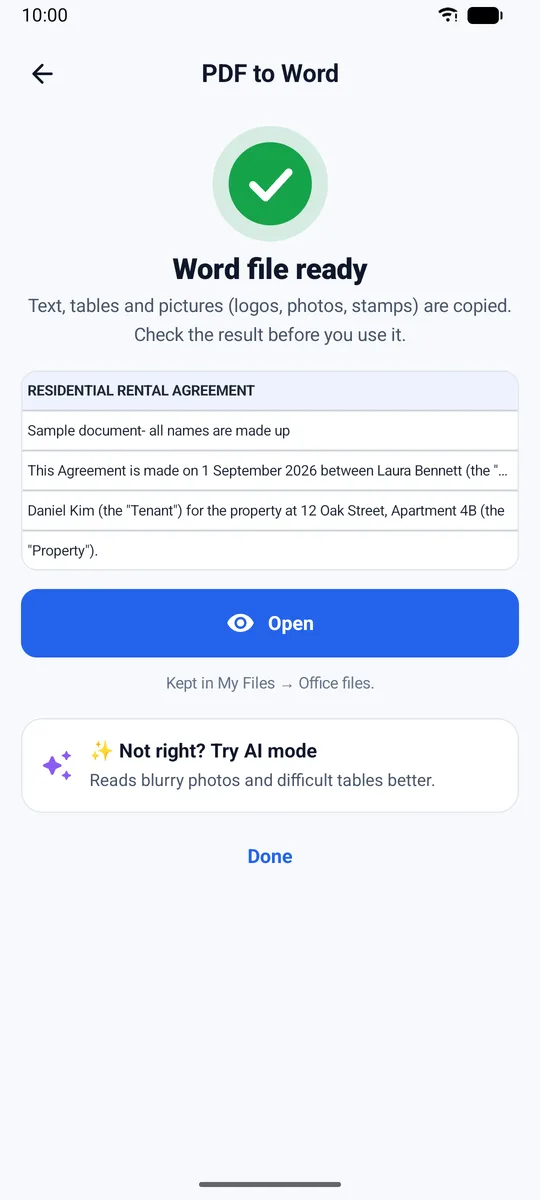
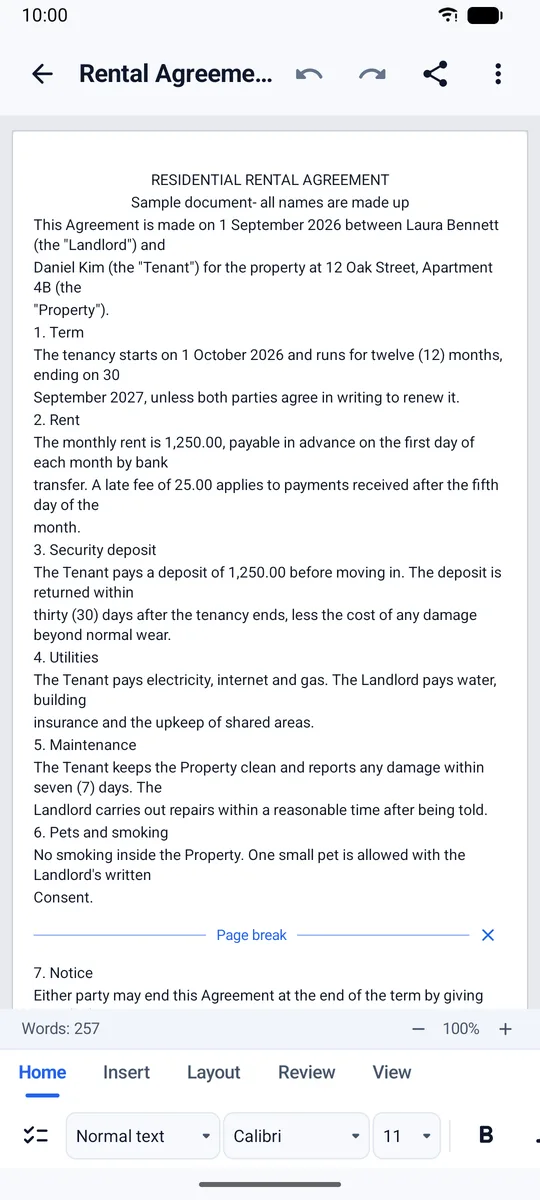
- Text, tables and pictures (logos, photos, stamps) are copied into a Word file. It's kept in My Files → Office files.
- Tap Open to change it in the Word editor, then save it as Word or PDF again.
When to use AI mode
On-the-phone reading works best on clear, printed pages and tables with clear lines. For blurry photos, handwriting or difficult tables, tap Not right? Try AI mode. AI mode sends the pages to Google's Gemini AI, needs a Google sign-in and uses your daily AI pages (5 a day free).
Tips for a better result
- Straight rows work best. Lay the paper flat and photograph it from above in good light.
- Always check the numbers before you use the sheet – especially decimal points.
- Only need the text? Use Image to text instead.
- Need a PDF again? In the Word or Excel editor, use Save as PDF.
Try it yourself
FSI Doc Manager is free on Google Play.