 FSI Doc Manager
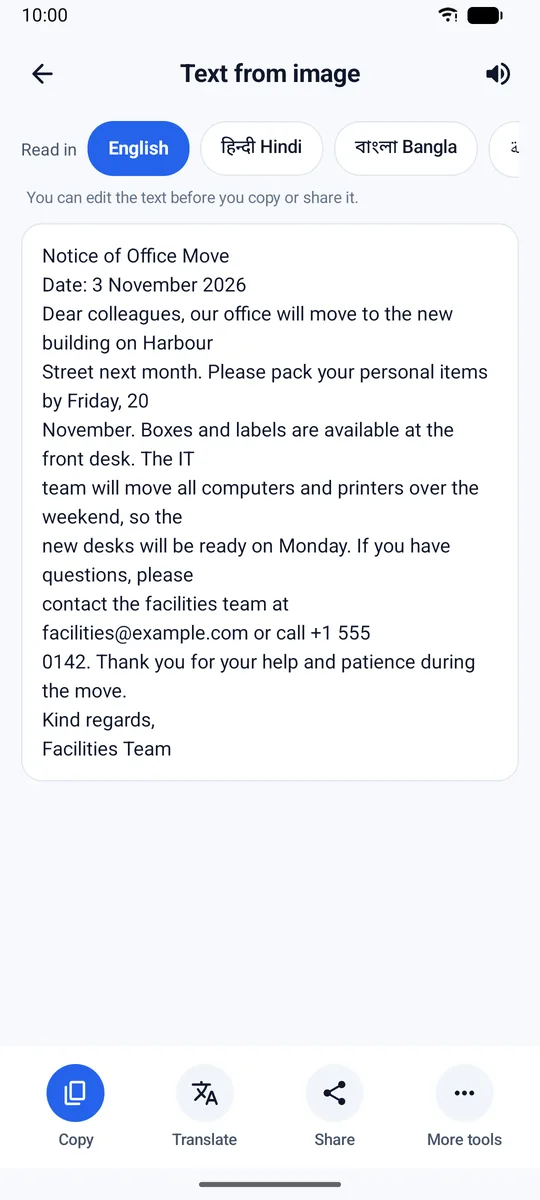
Need the words from a printed letter, a notice board or a page in a book? Typing it all again takes ages. With Image to text in FSI Doc Manager, your phone reads the photo and gives you the text in seconds – ready to copy, edit, share or translate. It reads English and other Latin-alphabet languages, Hindi and Bangla.
1. Pick a photo
On the Home screen tap Image to text and choose a photo of a page. (You can also tap the round Scan button and choose To text to photograph the page straight away.)
2. Read it on your phone
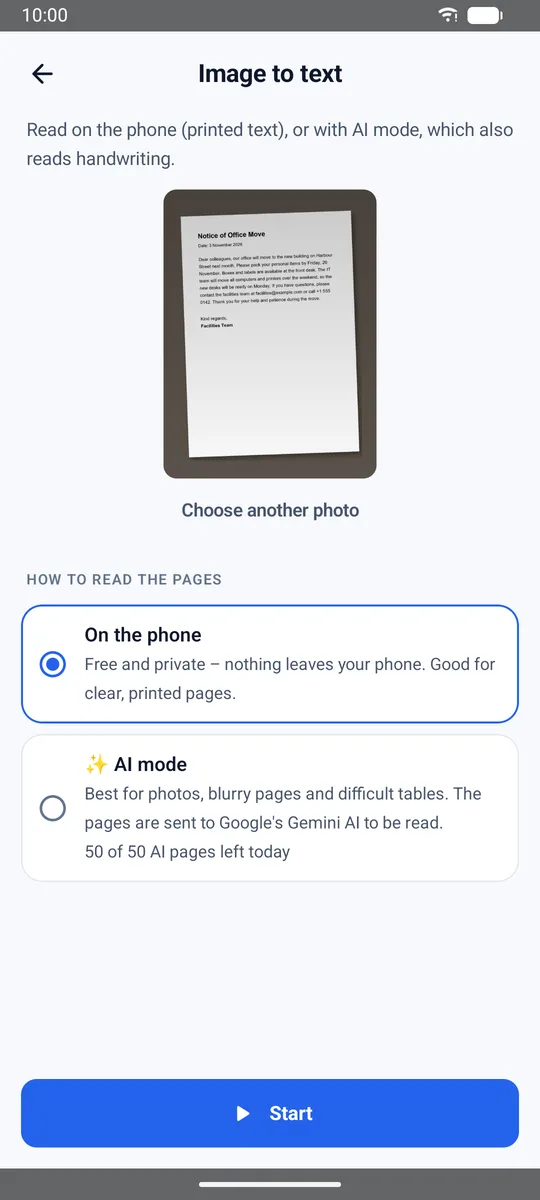
- Choose On the phone. It's free and private – nothing leaves your phone. It works best on clear, printed pages.
- Tap Start. In a few seconds the text appears.
- Fix anything you like – the text can be edited – then tap Copy, Share or Translate. The speaker button at the top reads it aloud.
3. Hindi, Bangla and more
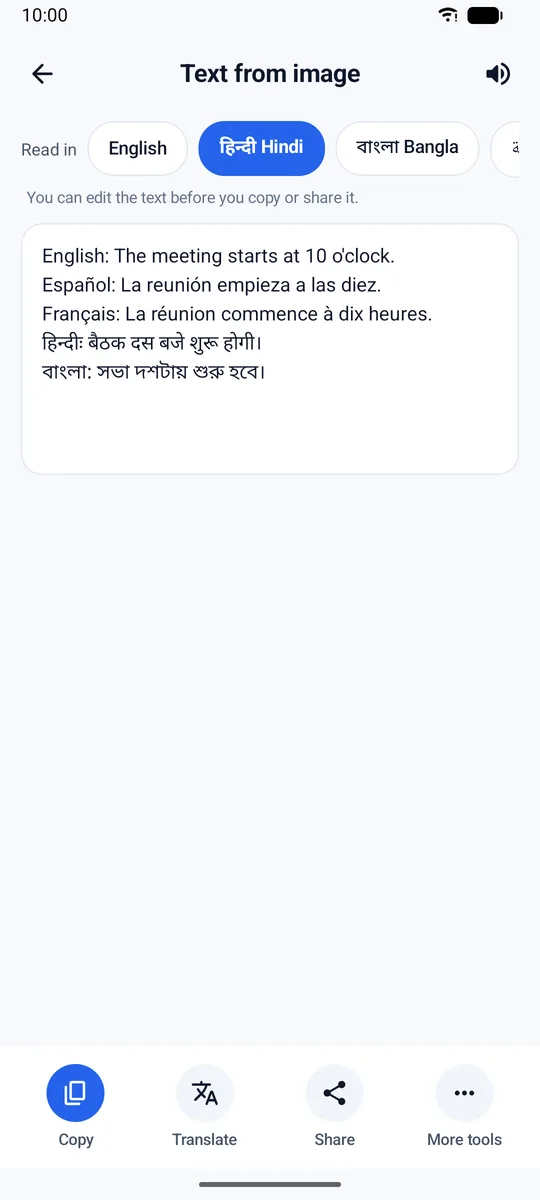
Under Read in at the top, tap the language of your page – for example हिन्दी Hindi or বাংলা Bangla. The photo is read again in that language. Choose the language your page is mostly written in for the best result.
When to use AI mode
AI mode reads handwriting, blurry photos and difficult pages much better. It sends the photo to Google's Gemini AI, needs a Google sign-in and uses your daily AI pages (5 a day free). Use it only when you choose to – on-the-phone reading never sends anything.
Tips for better results
- Good light and a straight photo – hold the phone right above the page.
- Fill the photo with the page; the less background, the better.
- Tables? Use Image to Excel instead – rows and columns stay in place.
- A whole PDF? Open it and use Make searchable, so you can search and copy its text later.
FSI Doc Manager is free on Google Play.